Accuracy & Validation
Extraction is only half the job. Every conversion is validated with running-balance checks before you download, so errors are caught up front.
- Balance-chain validation catches wrong signs and missing rows
- Clear PASS/FAIL status with an Issues tab for review
-
Rows requiring inference marked
needs_review
Credits required • Failed conversions don't deduct credits
What validation catches:
- Wrong debit/credit signs
- Missing or extra rows
- Misplaced fees
- Layout parsing errors
Why validation matters for bank statement conversion
Most PDF converters focus on making a table that looks right. Bank statements are different because the data must reconcile.
Generic converters often produce spreadsheets with subtle errors that only surface during reconciliation. Validation catches these before you rely on the data.
Common failure modes we catch:
- Credits interpreted as debits (or the reverse)
- Missing transaction lines due to layout breaks
- Fees merged into the wrong row
- Non-transaction lines that look like transactions
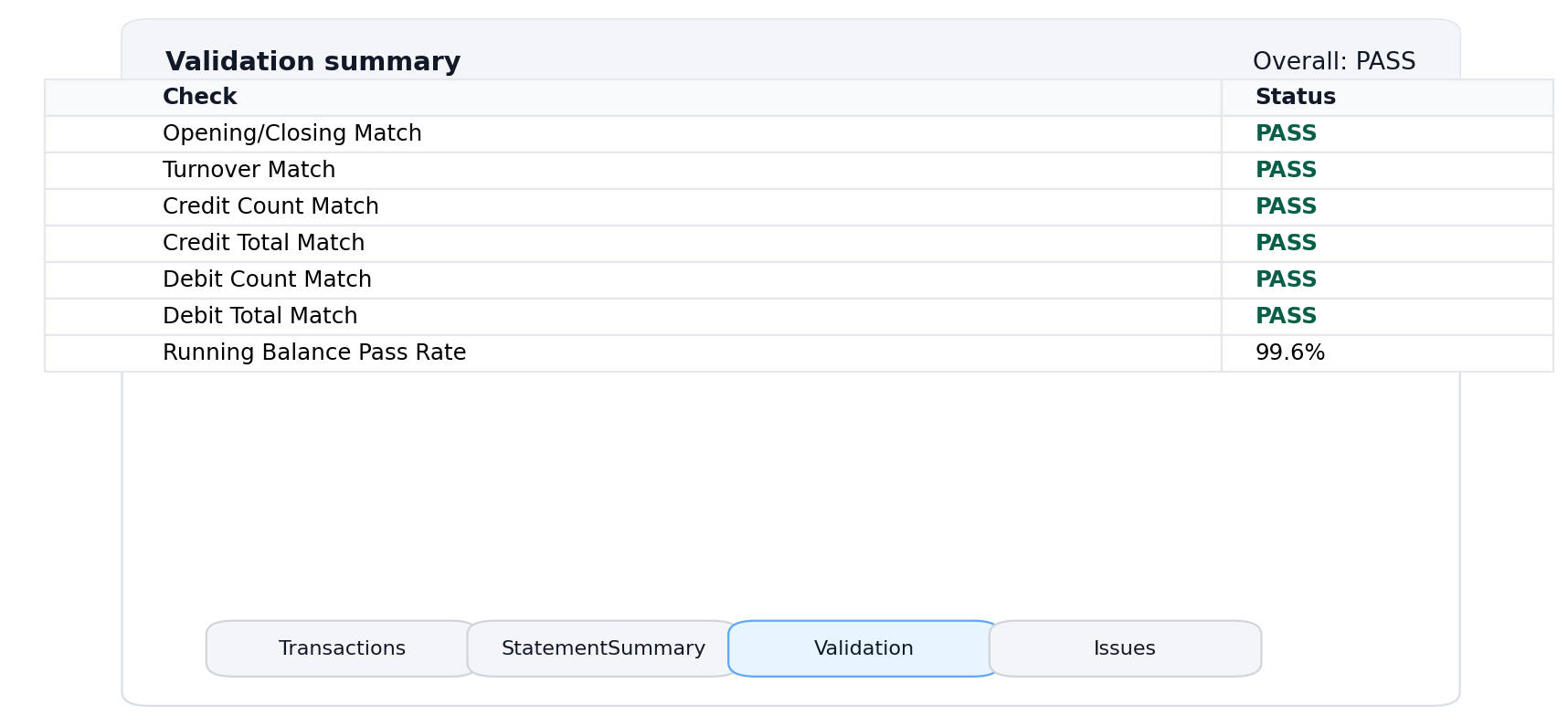
Validation Result
PASSThe Validation Checks We Run
Four layers of verification ensure your Excel output is accurate
Running balance integrity
What it checks: For each row, the balance equals the prior balance plus the transaction amount.
What it catches: Wrong sign, missing rows, extra rows, shifted columns.
Example: A debit showing as +R500 instead of -R500
Opening & closing balance
What it checks: Starting and ending balances match the computed result from transactions.
What it catches: Missing pages, omitted rows, partial extraction.
Example: Statement shows closing of R10,000 but computed is R9,850
Non-effective row detection
What it checks: Rows where balance does not change, or patterns look unusual.
What it catches: Informational lines, declined attempts, display-only rows.
Example: "Payment declined" appearing as a transaction
Inference flagging
What it checks: When a sign or mapping must be inferred, the row is marked needs_review.
What it catches: Ambiguous layouts and edge cases that deserve attention.
Example: Amount placed in merged cell with no column header
Understanding Your Validation Status
Every conversion produces one of three outcomes
All checks aligned
Balance chain checks reconcile within expected rules. The workbook is ready to use.
Core checks pass, rows flagged
The overall balance chain reconciles, but one or more rows are marked needs_review.
Checks did not reconcile
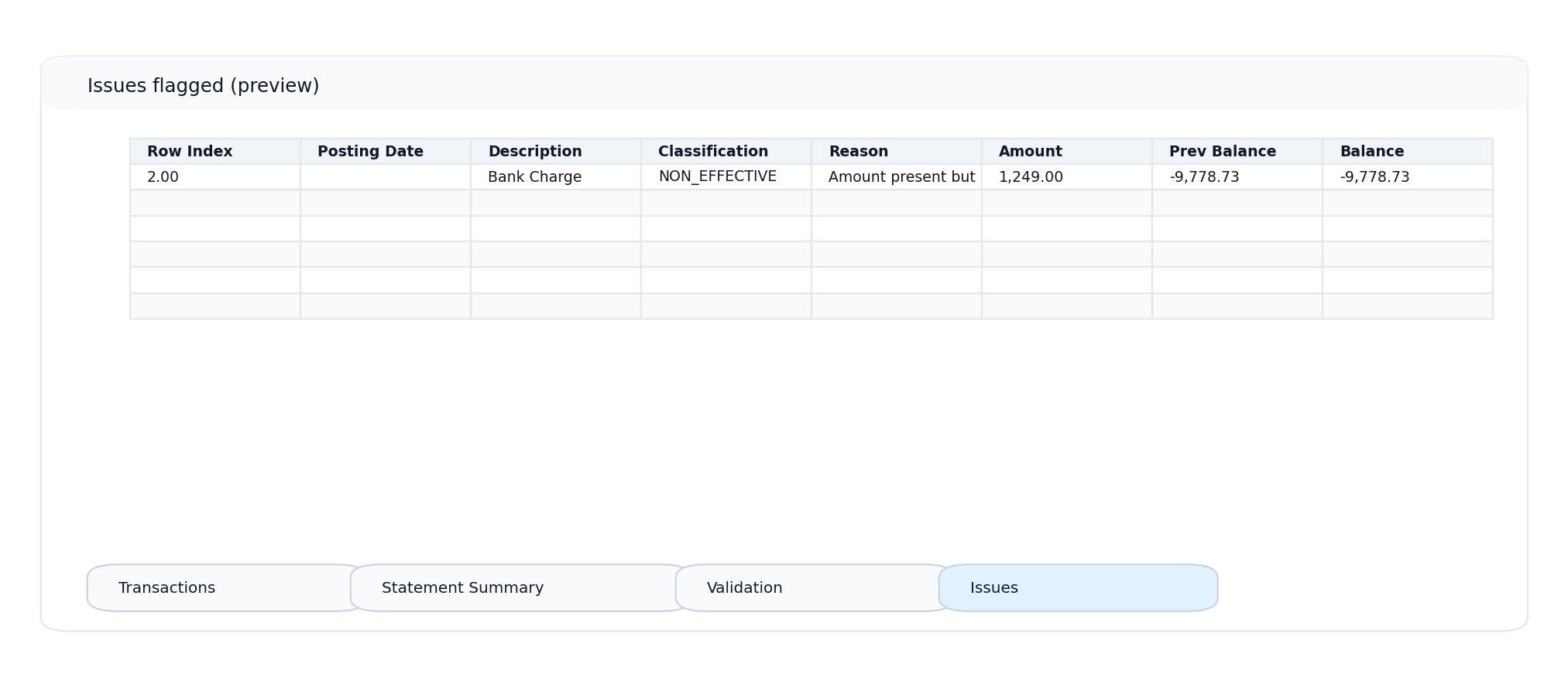
One or more validation checks failed. The Issues tab shows exactly what went wrong.
See What You Get
The workbook includes dedicated tabs for validation and issue tracking
 Click to enlarge
Accuracy at a Glance
Validation Tab
PASS/FAIL outcome, check results, and integrity statistics at a glance.
Issues Tab
Rows needing review listed with reasons. Jump straight to what needs attention.
Real screenshots. These are from actual conversions, not mockups.
Typical Issues and How We Handle Them
Common extraction challenges and how validation catches them
Review a Conversion in Under 2 Minutes
A simple workflow to verify your Excel output
Check Validation Tab
Open the Validation tab and look for PASS or FAIL status.
Review Issues (if any)
If PASS with Issues, filter Transactions for needs_review = true.
Fix Flagged Rows
If FAIL, open Issues tab and work through each flagged row.
Spot-Check Balances
Compare opening/closing balances with your statement header.
What Improves Accuracy
Best practices for the cleanest conversion results
Use original PDF exports
Download directly from online banking. Digital text beats scans.
Avoid screenshots
Screenshots saved as PDF lose text structure entirely.
Include all pages
Missing pages often cause FAIL. Check page count before uploading.
Clear scans at 300 DPI
If scanning, use straight pages with good contrast.
Frequently Asked Questions
Related Resources
Ready to See Validation in Action?
Upload a bank statement and get a validated Excel workbook with PASS/FAIL status and issue flagging.
Credits required • Failed conversions don't deduct credits